

Unsolved
1 Rookie
•
7 Posts
0
1198
December 17th, 2024 20:25
Dell WD19TBS not working after firmware update?
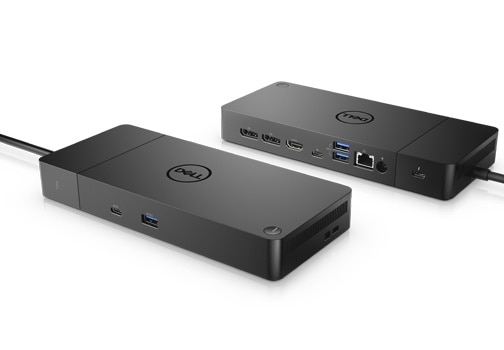
Dell Thunderbolt Dock – WD19TBS
I successfully updated the firmware to the latest from November 28 DellDockFirmwarePackage_WD19_WD22_Series_HD22_01.00.28.exe
But the docking station is only delivering power to the laptop. USB and Displays aren't working. The power button LED is off when it's connected to the laptop. LED on the thunderbolt cable is lit.
I've tried multiple times to power cycle it by unplugging everything along with the AC cord and then wait 30 sec. The power button flashes 3 times and shuts off when the power cord is inserted. Fan is spinning loudly and stops as well.
What happened? The firmware update didn't when through successfully. Is the docking station broken now?


No Events found!
ChrisWilson00
1 Rookie
•
9 Posts
•
2 Points
0
December 17th, 2024 20:49
It sounds like the firmware update didn’t fully go through, and the dock may now be in an unstable state. Since you’ve already tried power cycling, which is a great first step, there are a couple more things you can attempt.
First, try resetting the dock by disconnecting it from your laptop, unplugging all peripherals, and holding the power button on the dock for about 20 seconds to perform a full reset. Once done, plug the power cord back in and reconnect to see if it makes a difference.
If that doesn’t help, you can re-flash the firmware. Sometimes, the firmware update doesn’t complete successfully, so re-running the utility can resolve the issue. Make sure your laptop is fully charged, no peripherals are connected, and then attempt the firmware update again.
It’s also worth checking the Thunderbolt settings in BIOS. Occasionally, firmware issues can cause Thunderbolt to revert or stop functioning correctly. Reboot into BIOS and confirm that the Thunderbolt ports are enabled and set to "Always Connect."
If none of these steps work, it’s possible the firmware update may have bricked the dock. At that point, reaching out to Dell Support would be the best course of action, especially if the dock is still under warranty. They might provide a replacement or additional troubleshooting steps.
Let me know if you’ve already tried any of these or need further clarification. I hope this helps get things working again!
phivuu-2
1 Rookie
•
7 Posts
0
December 17th, 2024 20:55
@ChrisWilson00
I've already tried resetting thhe dock as you wrote but it's not helping. Every step in the firmware upgrade process was finished and showed a green icon with the new version stated. So it looked like the firmware upgrade was succesful. I'm unable to re-flash the firmware as the utility is not detecting the dock. "No Dell dock attached.". The only thing working right now is charging the computer. I also checked the Thunderbolt settings in BIOS and it looks to be unchanged. Ports are enabled and set to connect without security. No user authentication needed.
The dock was bought second hand and warranty has expired. Is it still worth contacting Dell support?
ChrisWilson00
1 Rookie
•
9 Posts
•
2 Points
0
December 17th, 2024 21:11
@phivuu-2
Since the firmware update showed as successful, but you're still facing issues, it seems like the dock may be in a semi-bricked state where it’s only providing power and not functioning properly for USB and display connections.
Given that the utility is not detecting the dock anymore and you're unable to re-flash the firmware, it's possible that the firmware update didn't fully complete or left the dock in an unresponsive state. Unfortunately, this happens sometimes with firmware updates, even when everything seems to go smoothly.
Even though the warranty has expired and the dock was bought second-hand, it’s still worth reaching out to Dell Support. Sometimes, they can offer troubleshooting advice or provide options for paid support. Dell may also have some recovery tools or firmware rollback options that could help reset the dock to a working state. They may not offer a free replacement, but contacting them is still a good idea as they may have some solutions for this specific issue.
I hope this helps, and good luck with getting it sorted!
phivuu-2
1 Rookie
•
7 Posts
0
December 17th, 2024 22:16
@ChrisWilson00
To my surprise, the dock is working on my old Dell XPS13 9630. My work laptop is a HP zbook 14u g6. Seems the latest firmware isn't working well with that? Should I attempt a downgrade? I don't remember what firmware the dock was on though.
One thing to note is that the power button led isn't on even if the dock is working.
(edited)
phivuu-2
1 Rookie
•
7 Posts
0
December 17th, 2024 22:24
Seems I can't edit my last post so I'll make an update here.
This is so strange. I tried it again on my HP zbook 14u g6 right after getting it working on my XPS. It now works?! Power cycling and resetting didn't work but switching computers did hmm. Glad it's not bricked but very strange.
phivuu-2
1 Rookie
•
7 Posts
0
December 18th, 2024 00:03
It malfunctioned again on the HP zbook and I had to plug it into the Dell XPS again. I've tried to downgrade the firmware. Trying to find which version works best with the HP zbook. It's the exact same issue as this one.
https://www.reddit.com/r/pcmasterrace/comments/1alwhrl/new_issue_with_dell_docking_station_and_hp_laptop/
user_b55506
1 Rookie
•
1 Message
•
2 Points
0
February 17th, 2026 22:36
I had a similar issue just now with a WD19 docking station. It had an issue where one of the monitors would go black for a few seconds.
I read this article that recommends updating the firmware. Monitor Experiences Intermittent Blanking when Connected to Dell Docking Stations
I downloaded and attempted to install the firmware update. The update failed on the last step and it bricked my docking station. I called Dell tech support and they told me because it's out of warranty they can't do anything. Incredibly frustrating to follow support instructions from the manufacturer, lose a device, and then get told by tech support that I'm out of luck.