

Unsolved
1 Rookie
•
2 Posts
0
474
September 14th, 2023 11:03

How to install Windows on new HDD for 9010
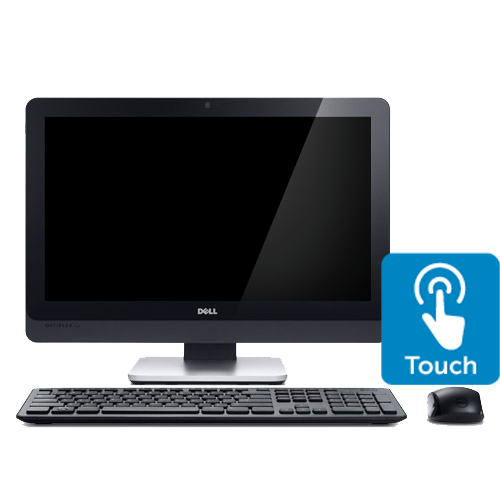
OptiPlex 9010 All-In-One
My 9010 HDD crashed and I bought and replaced the HDD. How do I reinstall the Windows OS on the 9010 ?
No Events found!
Unsolved
1 Rookie
•
2 Posts
0
474
September 14th, 2023 11:03
OptiPlex 9010 All-In-One
My 9010 HDD crashed and I bought and replaced the HDD. How do I reinstall the Windows OS on the 9010 ?
Top
ejn63
12 Elder
•
31K Posts
•
153.7K Points
0
September 14th, 2023 12:37
https://www.youtube.com/watch?app=desktop&v=JrEH4ARVX84&ab_channel=DellSupport
gancw1
1 Rookie
•
2 Posts
0
September 15th, 2023 01:01
@ejn63 Doesn't support 9010
bradthetechnut
9 Technologist
•
9.5K Posts
•
40.2K Points
0
September 15th, 2023 01:20
On a working PC, you will be downloading Win10 to an 8GB or bigger blank flash drive formatted to FAT32. They often come formatted that way anyway. Download Windows 10 Disc Image (ISO File) Microsoft site Download the ISO. It will be in your Downloads folder. With flash drive inserted, click on the ISO and follow onscreen instructions Win10 will then be loaded on the flash drive. Takes a little while. When ready to load Win10 from flash drive, boot from flash drive on your PC to load Win10.
When a window pops up asking what partition to load Win10 on, delete all previous partitions except for System and MSR if reusing a boot drive. Then click on Next or Install. Win10 will then automatically create the appropriate partitions and load. If a window pops up asking for product key, click on link that says “I do not have a product key.” Win10 will then continue to install using the product key that’s imbedded in BIOS. You’ll still need to activate it online.
krishan91
1 Rookie
•
49 Posts
0
September 30th, 2023 18:27
To install Windows on a new HDD for 9010, you will need a bootable Windows installation drive. You can create a bootable Windows installation drive using a USB flash drive or a DVD.
To create a bootable Windows installation drive using a USB flash drive, you will need a USB flash drive with at least 8GB of storage space. You can download the Windows Media Creation Tool from Microsoft's website and use it to create a bootable Windows installation drive.
To create a bootable Windows installation drive using a DVD, you will need a blank DVD and a DVD burner. You can download the Windows ISO file from Microsoft's website and use it to create a bootable Windows installation DVD.
Once you have created a bootable Windows installation drive, you can follow these steps to install Windows on your new HDD:
During the installation process, you will need to select the new HDD as the drive where you want to install Windows.
Once Windows has been installed, you will need to install the necessary drivers for your computer. You can download the drivers from the Dell website.
bradthetechnut
9 Technologist
•
9.5K Posts
•
40.2K Points
0
October 2nd, 2023 00:31
@gancw1
Also replace the size 2032 CMOS battery if it's 5+ years old. Bad batteries affects BIOS and in turn affects if it see drives or not. A bad battery can make it next to impossible to install OS.