

1 Rookie
•
3 Posts
•
2 Points
0
224
August 9th, 2024 00:42
Dell 7790 AIO Graphics / Video Failing after 5 years - swirled graphics
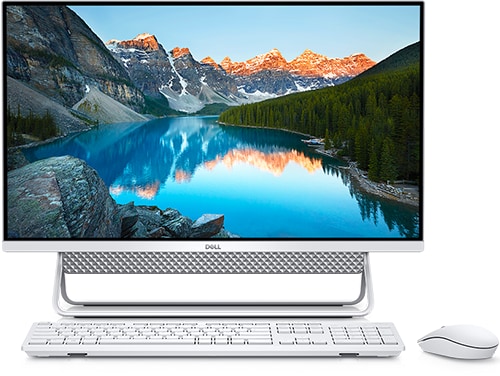
Inspiron 7790 AIO
The video display on my Dell 7790 AIO seems to be failing. The screen itself works fine (when I have toggled it to use HDMI-in from another device. Conversely, I've also connected an external monitor and to my Dell 7790 AIO and that monitor showed the distorted display. I don't believe its a driver issue - I reverted Windows back to the factory image and its likewise failing and distorted. After a cold boot, it is somewhat legible but gets worse with time and eventually just cuts to black.
This leads me to believe it's a failing piece of hardware rather than software. It may be overheating leading to worse degradation. Another prior post here had a similar issue, and they reasoned it was dried out thermal paste causing the chips to overheat. This seems like a reasonable conclusion that I may have the same problem as well.
I haven't been able to try any troubleshooting via software. The screen is so illegible I can't do anything. Would anyone using the support with Dell ($39 to ship it back and have diagnostics on it) or just use a local repair shop? Also, what are the odds its fixable?

bcandyland
1 Rookie
•
3 Posts
•
2 Points
0
August 11th, 2024 00:19
Thanks for the help! I was able to hit f12 during the bios to enter into the diagnostic and repair manager. The screen looked perfect and I ran all diagnostic tests. Everything passed fine. I then went through the repair function and reinstalled a fresh version of the most up to date Windows. It worked - but not for the reasons you think.
The device drivers for both the Intel integrated GPU and the nvidia GPU (mx110) were generic Microsoft display drivers. As the computer started updating them, it failed and went back to the distorted state.
I was able to get into the device manager before it was illegible and disable the "Intel(R) UHD Graphics". The Nvidia MX110 seems to be working fine.
So - I've isolated it to the Intel graphics. It's either a bad chip or a bad driver. But since I have the nvidia one it seems to be working fine to have the Intel chip disabled. Thanks all!
ejn63
12 Elder
•
31K Posts
•
153.7K Points
0
August 9th, 2024 13:41
You can start by pressing and holding the MODE key, which should initiate a series of self-test screens. If they show the same fault as your photo, the screen needs to be replaced. If they show good images, it's the mainboard you'll need to replace.
Once you determine what needs to be replaced, you can budget for the repair -- either component looks to be in the $200-250 range, plus whatever an hour's labor costs where you're located. You're likely better off with a good local repair shop so you don't need to ship the system -- any shipping carries the risk of damage.
tigerwife
2 Intern
•
56 Posts
0
January 23rd, 2026 11:20
Hi
Have you solved? I got the same problem as you......
Best Regards,
Joe
bcandyland
1 Rookie
•
3 Posts
•
2 Points
0
January 24th, 2026 15:11
@tigerwife Sorry to hear that. I was able to temporarily fix the issue by changing to a generic display driver as I mentioned above. But sometimes that can be impossible to do if you can't see the screen. You can try hooking up an external monitor to see if that helps. I think something is just failing on the unit, maybe the Nvidia chip is overheating or maybe its something else. Ultimately, I had to replace the whole thing. You could try taking it to a repair shop but without knowing exactly what the cause and correction is it's probably not worth it to mess around. I ended up throwing away the AIO and probably won't buy another again. While they look nice, one component failing can be a pain to fix. I ended up getting a cheap mini pc and connecting it to a standard monitor.